
Hoppie’s ACARS
Table of Contents
In the iniBuilds A350, Hoppie’s ACARS integration allows the user to communicate with ATC and to request D-ATIS (Digital ATIS). Learn how to get a Hoppie logon code here.
Connecting to the Hoppie Network
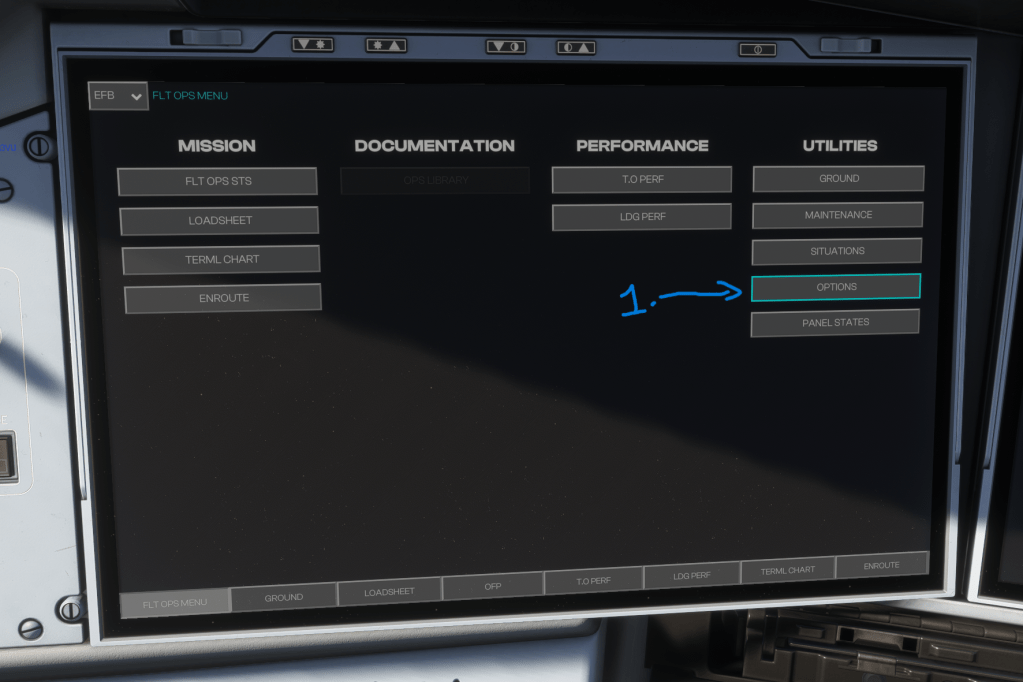
Enter your Hoppie logon code in the OIS on the following page: FLT OPS MENU -> OPTIONS -> 3RD PARTY. It is recommended to copy and paste your Hoppie code directly into the Hoppie Logon field using ‘Ctrl+V’. The code can also be entered using the on-screen keyboard. Note: the logon code is case sensitive.

Requesting D-ATIS
Navigate to the ATC COM page of the MFD either by the ATC COM shortcut on the KCCU or the drop down in the top left of the MFD. Select the D-ATIS page. If you have filled out the FMS INIT page, the departure, arrival and alternate (if applicable) fields should have been automatically filled out.
Click ‘Send Request’ and you will recieve either METAR (if ATIS is not available for that airport), or the ATIS via the Hoppie Network.
The ATIS or METAR can be updated via either the respective ‘update’ or the ‘update all’ button. Note: at the time of writing the PRINT function is inoperative.
Connecting to an ATC Station
Navigate to the ATC COM page of the MFD either by the ATC COM shortcut on the KCCU or the drop down in the top left of the MFD. Select the CONNECT page.
On this page select the relevant network (VATSIM, IVAO or SayIntentions). Select the station ID in the NOTIFY TO ATC field (the station you wish to connect to). This can either be done by manually typing on the KCCU or from the list. Finally, click NOTIFY.
Once successfully connected, you will see an ACTIVE ATC status message in the MAILBOX.
Sending ATC Requests
Navigate to the REQUEST page of the ATC COM menu. ATC requests can be built using the templates provided. Empty fields can be filled out with complimentary information. Amber fields must be filled out. You can use up to 5 templates in one request message.
Once you have filled out the templates you require click either XFR TO MAILBOX to give you the option to send, or TRASH to delete the current template.
Navigate to the MAILBOX either by double clicking on the mailbox or using the shortcut key on the KCCU. If you are happy with your message click SEND, otherwise click cancel. Once the message has been sent the message background should turn green and you will see a SENT status.
Recieving ATC Messages
You will recieve several notifications when contacted by ATC for a message or instruction:
- Blue ATC MSG button on the glareshield
- ATC MSG aural alert (reset by pressing the ATC MSG button)
- MFD FMS will display a RECIEVED STATIONS alert
- ECAM will show an ACARS MSG memo
- Message will appear in the MAILBOX
To reply, click the desired reply in the MAILBOX followed by SEND.
Disconnecting from a station
Navigate to the ATC COM page of the MFD either by the ATC COM shortcut on the KCCU or the drop down in the top left of the MFD. Select the CONNECT page. Click DISCONNECT ALL.
 Flight Sim Tutor